What does each part of the editor do?
Updated October 22, 2026
The short answer
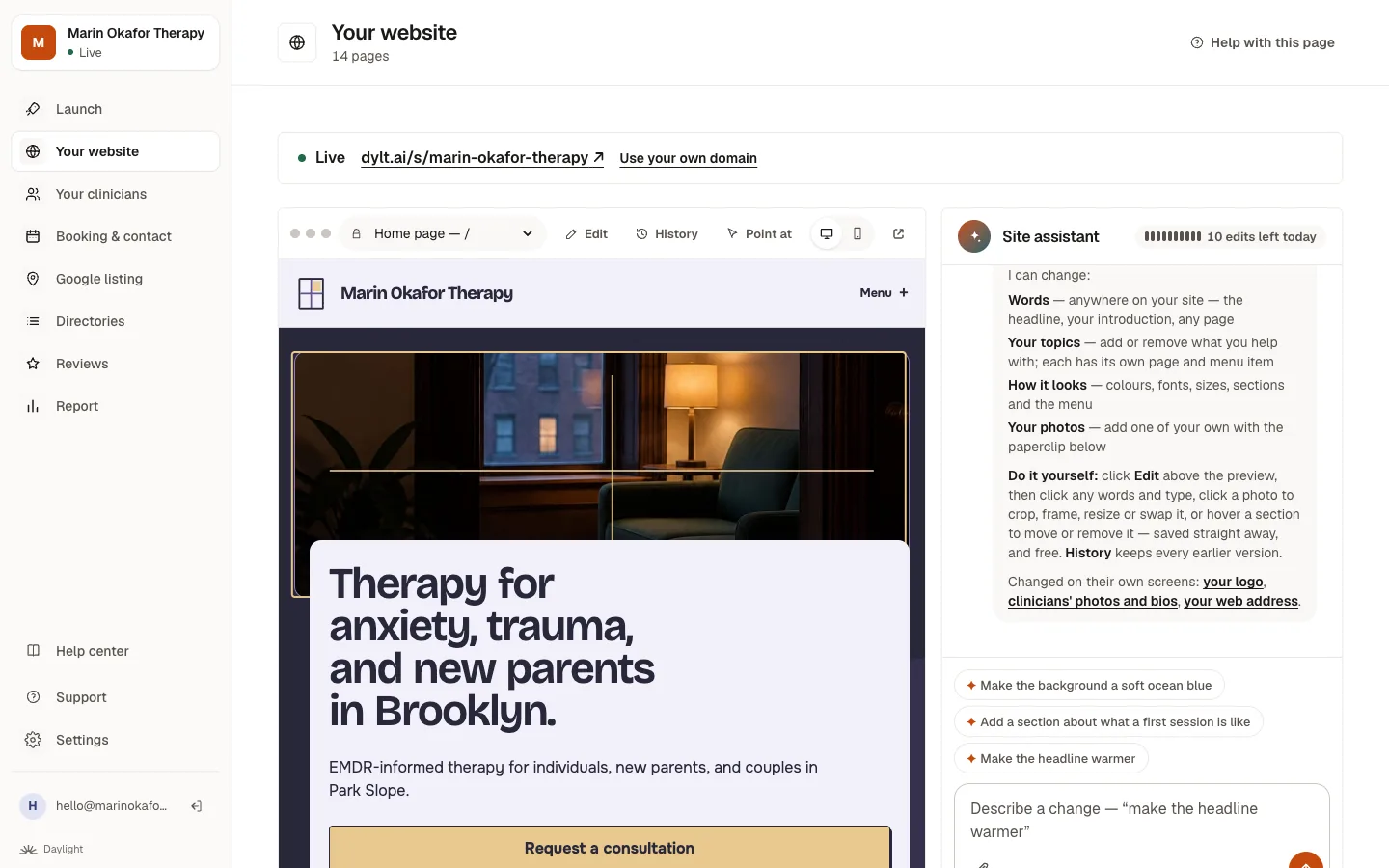
Your website screen has your site on the left and the site assistant on the right. Above your site: a page picker, Edit, History, Point at, phone and computer views, and a button to open it in a new tab. On the right, you type what you'd like changed.
The screen at a glance
| What you see | What it does |
|---|---|
| Live or Not live yet (the bar at the top) | Whether visitors can see your site, and its address. Click the address to open your live site. |
| The page picker (Home page — /) | Choose which page to look at. Every page of your site is in the list. |
| Edit | Click any words and type; click a photo to crop, frame, resize or swap it; move or remove a section on the home or About page. Free, and saved straight away. |
| History | Every earlier version of your site. Click Restore to go back to one. |
| Point at | Click a part of the page to tell the assistant exactly which part you mean. |
| The computer and phone buttons | See your site the way it looks on a computer or on a phone. |
| The open-in-new-tab button | Open your site in its own tab to look through it properly. |
| Site assistant | Type what you'd like changed, in your own words. |
| edits left today | How many changes you have left. Questions and changes you make with Edit don't count. |
| The paperclip | Attach your own photo to use on your site. |
Under each answer
- Undo puts back everything that change did. It's free. Saying “undo that” or “put it back” in the chat does the same.
- See it on … takes your preview straight to the page that changed.
Suggestions
Below the assistant's welcome there are a few suggested changes, like “Make the headline warmer”. Click one to try it, or ignore them and type your own.
Related questions
Still stuck? Ask a person.
Tell us what you're trying to do. A real person reads every message and replies within a few hours.