A quick tour of your dashboard
Updated October 18, 2026
The short answer
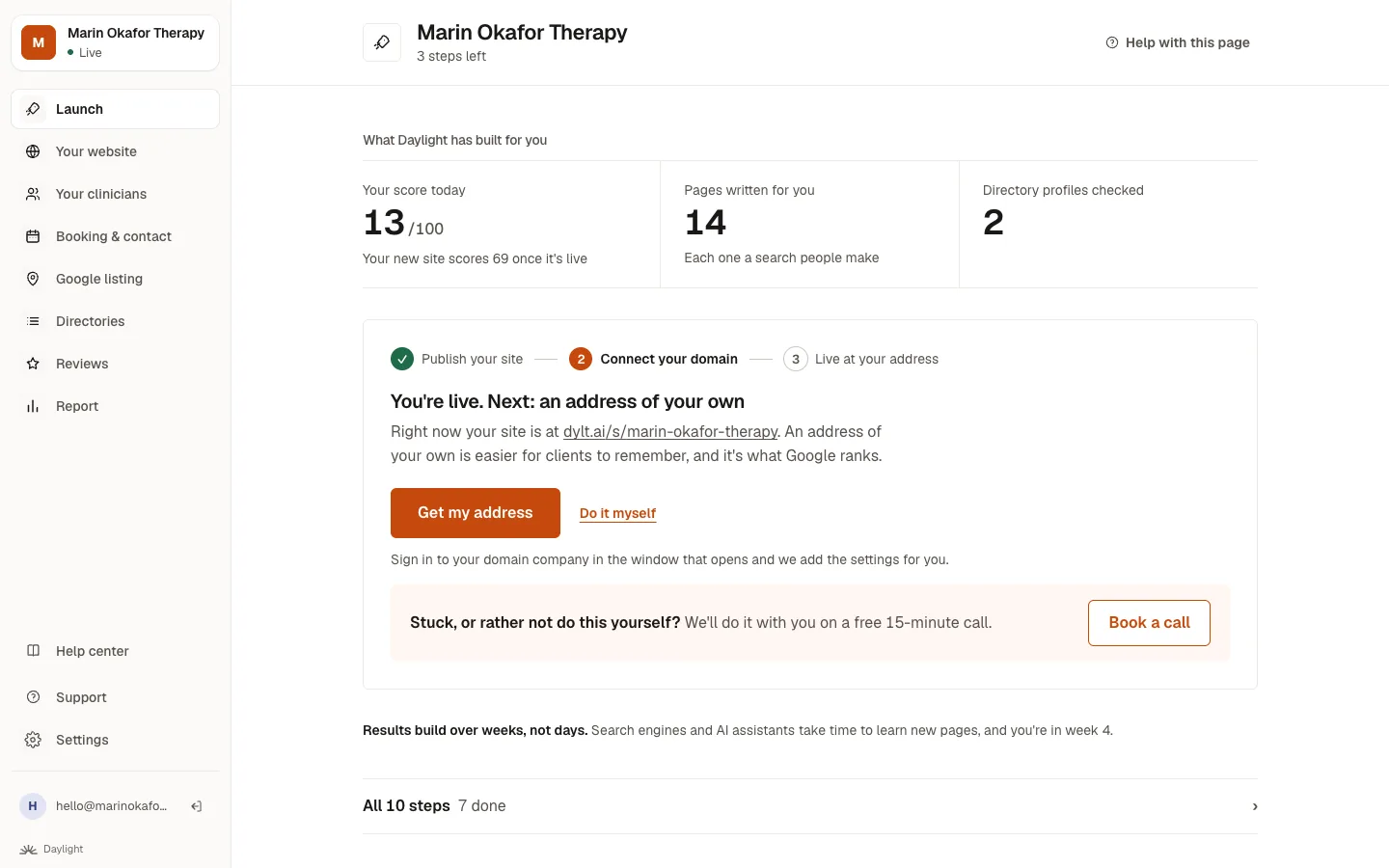
When you first sign in, Launch walks you through setup one step at a time: three short steps, each with one button. After that it shows what we've done for you and the one thing to do next. Your website is where you change your site, and Settings holds your details and plan. Support is always there if you need us.
Setting up, one step at a time
The first time you sign in, Launch shows three steps, one at a time. With a new website: publish it, move your address to it, and confirm your Google listing. Keeping your own website: turn on your guide pages, put our improvements on your site, and confirm your Google listing.
Each step has one button. Skip for now moves on without losing anything, Back returns to an earlier step, and Go to your dashboard takes you to everything else. Anything you skip stays on your dashboard under Continue setting up.
The menu
- Launch: what we've already done for you (your score, the pages we've written), the one thing to do next, and how long results take. Every step and your monthly check are under All steps, and finished steps tick themselves off. (On the Keep my current website plan, it's called Your plan.)
- Your website: see your site and change anything.
- Your clinicians: names, credentials, photos and bios.
- Booking & contact: your fee, the insurers you take, your booking link, and how visitors get in touch. See how.
- Google listing, Directories and Reviews: everything about being found.
- Report: your score and how it has changed.
- Support: send us a message. A person replies within a few hours.
- Settings: your practice details, email, privacy policy and plan.
Keeping your own website?
On the Keep my current website plan, Launch is called Your plan, and in place of Your website there are two tabs: Guide pages, the pages we publish for you, and Site improvements, the changes for your own site. Your clinicians and Booking & contact aren't there, because those belong to a site we build.
On a phone
The menu becomes a strip across the top. Swipe it sideways to see everything.
Related questions
Still stuck? Ask a person.
Tell us what you're trying to do. A real person reads every message and replies within a few hours.